
| BLOG | GAMES | LISTS |
Mar 3, 2026Preparing an SD Card to transfer GCode files to the Creality Ender 3 V3 SEMy Ender 3 V3 SE came with an SD card to transfer files for printing and one day it dissapeared. When my replacement 64GB SanDisk Ultra arrived it worked fine on my Windows 10 computer but on the printer no files showed up in on the print screen. Here are some things you can try to fix it: 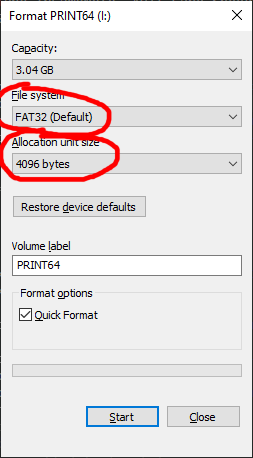
Formatting from Disk Management didn't work for me but formatting from Windows Explorer did. In Windows File Explorer find the SD card, right click on it and pick "Format". If you can't select FAT32 (NOT ExFAT) your drive is too big, look below for instructions to shrink it. Set Allocation Size to 4096 bytes (Note: Creality reccomends Allocation Size 4096 which ended up working for me but I had a friend that said their card was send from Creality as 32 kilobytes). 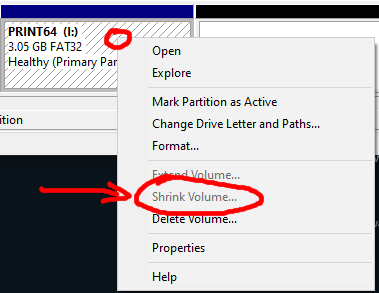
If you need to make the SD Card act smaller: Open Disk Management, in the bottom panel is a list of the disks - find the SD card (you may have to Action->Refresh if its not showing up), right click on the Partition and select Shrink Volume. Figure out how much to shrink it to make it under 4GB (or 32GB as that might also work), it's easy to search online for conversions but note that capital "B" stands for bytes and lower case "b" stands for bits and 1 Byte = 8 bits so be pedantic. Once the drive is small enough you should be able to go back to Windows Explorer and right click Format and FAT32 should now be an option. Hopefully your drive works now but I actually also formatted from Disk Manager and Windows File Explorer a bunch of times before it started working and I'm not sure what the last thing I did was that made it work vs the many times I formatted it before. I also tried combining all the Partitions to remove the 16MB empty partition at the beginning of my drive but apparently it's important and the change broke the SD card and I had to install "SD Card Formatter" to set the card up properly again. It's possible this is a required step to get everything working but I don't think so. I hate installing random programs and I hope there was no malicious code in it. I hope this guide helps others who are struggling with this issue and my only advice is that if it's still not working, format the drive a couple times from both the Disk Management and Windows File Explorer. Good Luck! |
|